How to use your client portal
Choose a topic below to learn how to review work, send a message, or find your files.
Open your client portal ↗Follow the short instructions in each section. Select Show screenshot to see where to click. For a closer look, select View larger image; it opens in a new tab.
Start with Home
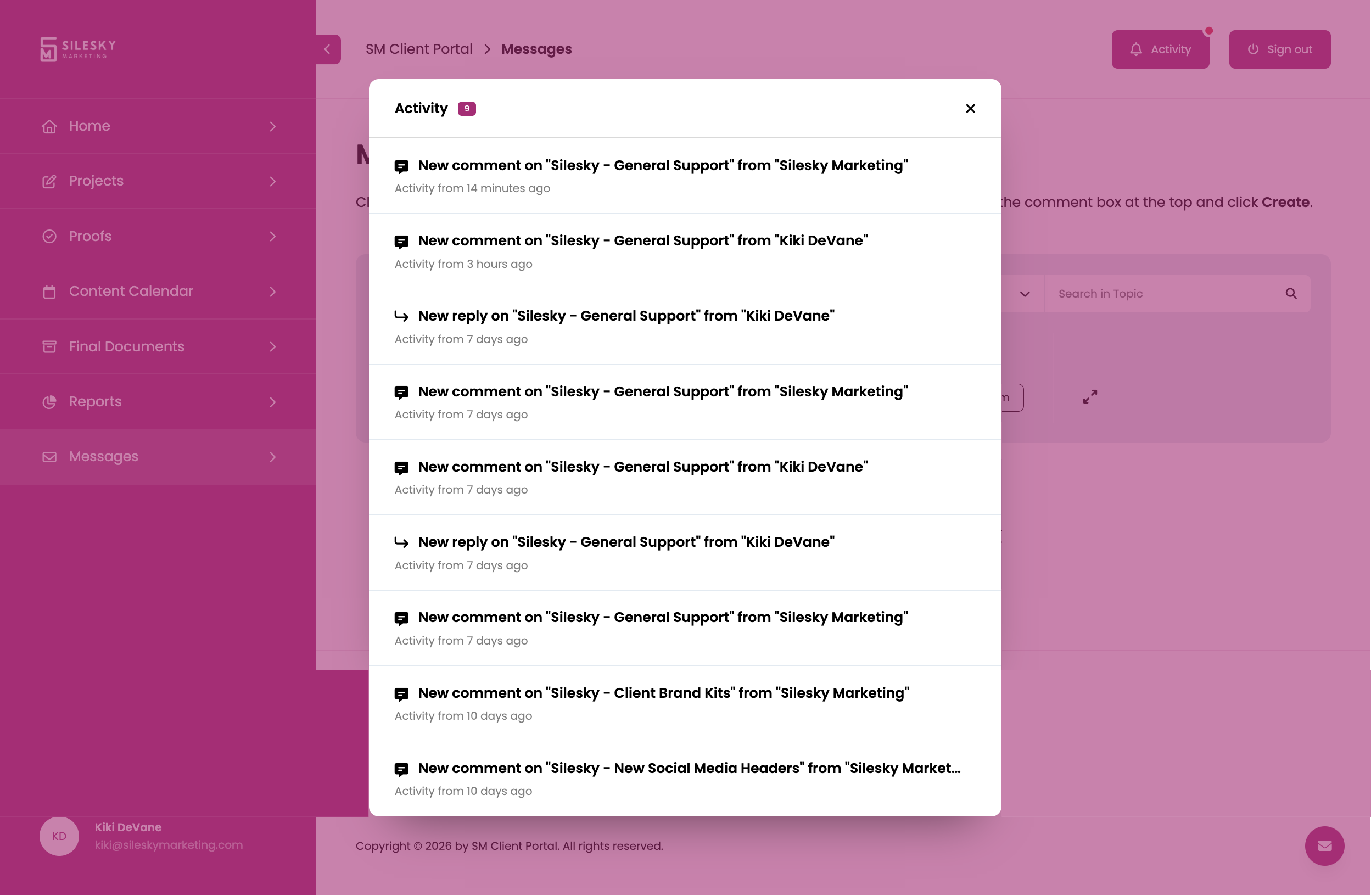
Your starting point for projects, proofs, files, and conversations. Use the left menu or the Home tiles to reach each area.
Submit a Project Request opens the project intake form. Schedule a Meeting opens the booking calendar. Both buttons are on Home.
Your portal at a glance
View larger image ↗- Use the left menu to move between portal sections.
- Use these Home buttons to submit a project request or schedule a meeting.
- Use the message icon to start a message to our team.
Show screenshot
Home alerts tell you what needs attention
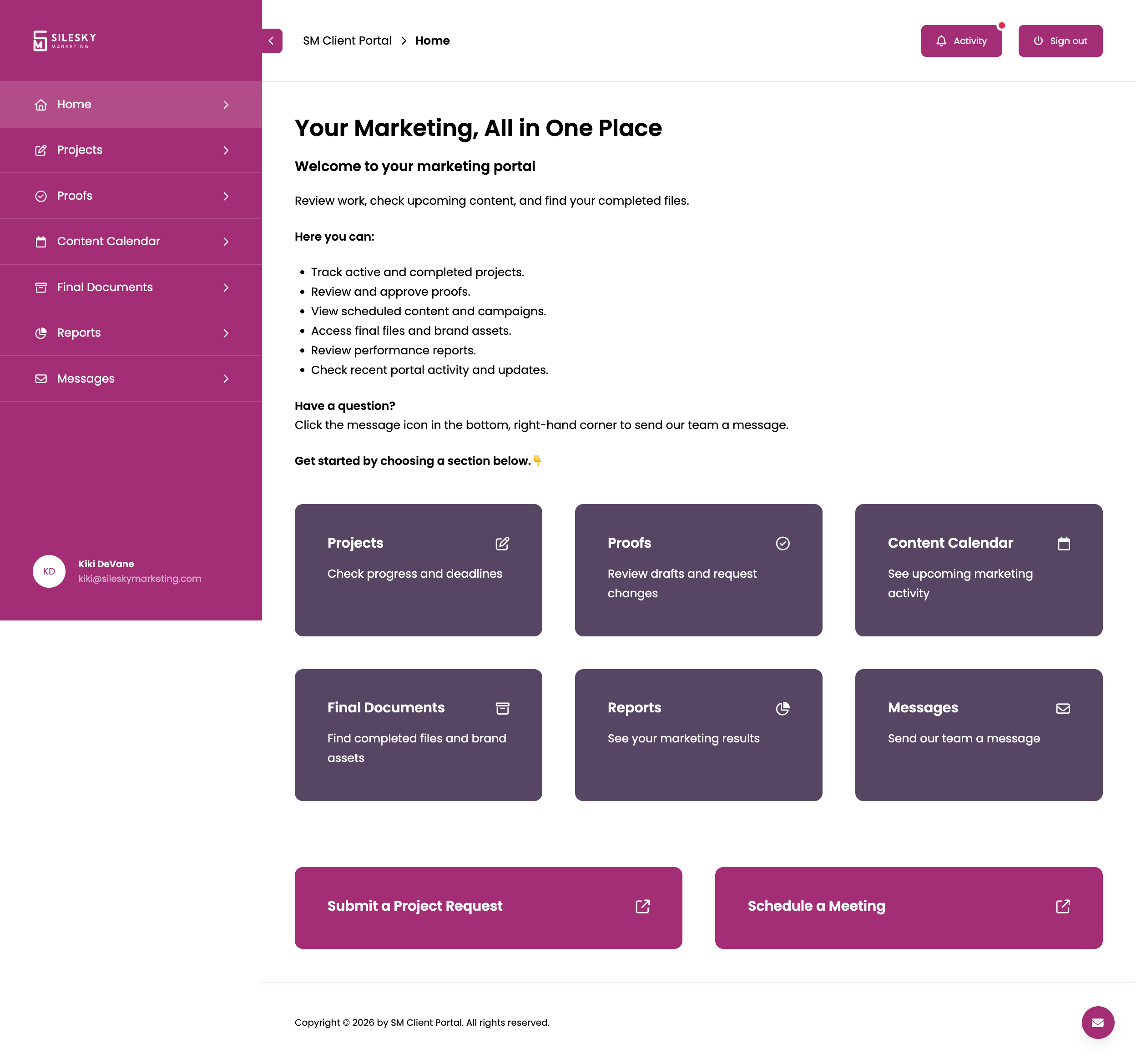
View larger image ↗- Review Now takes you to proofs awaiting your review.
- View Messages takes you to conversations that need your response.
Show screenshot
Track your projects
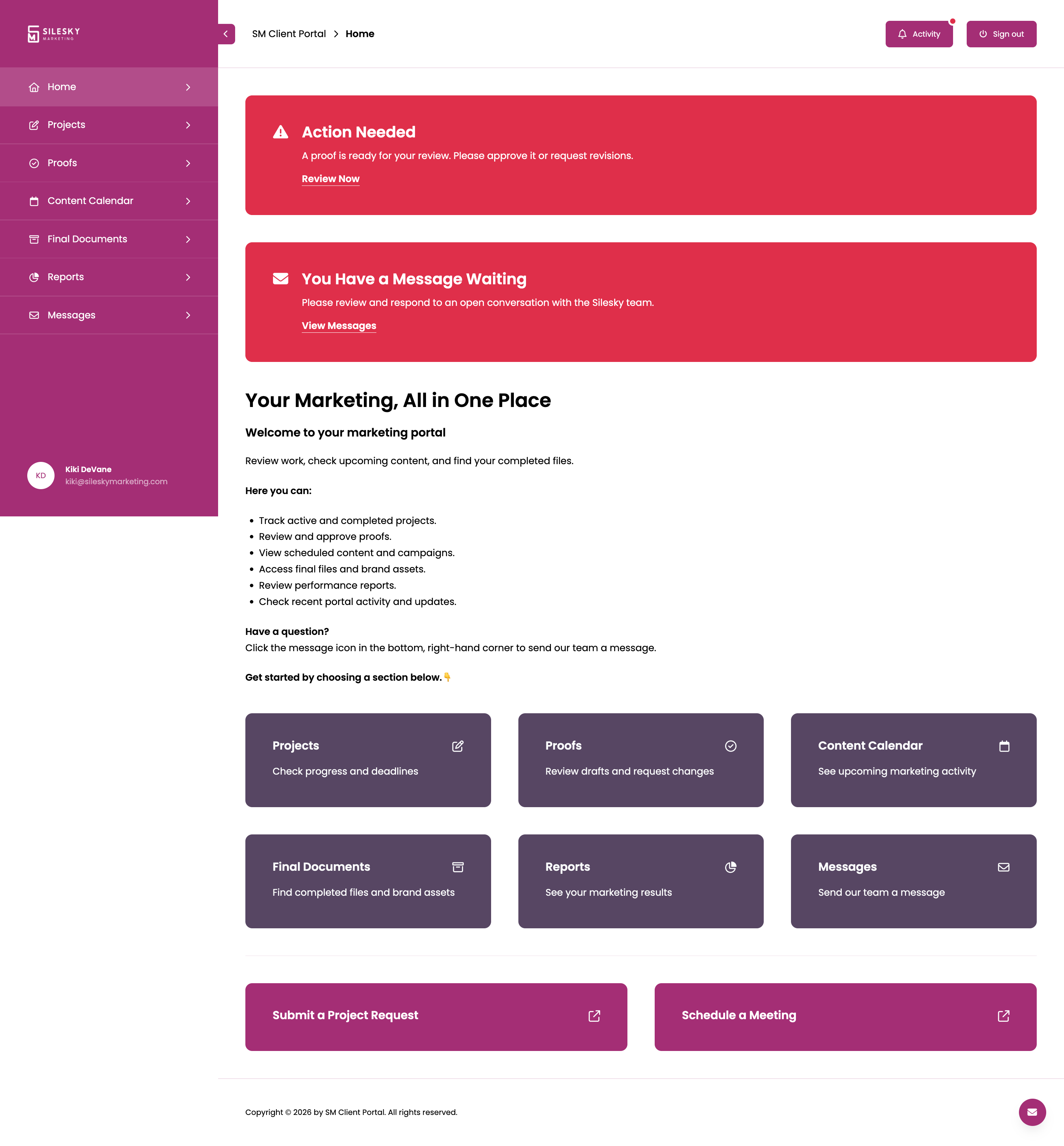
View active and completed projects, check dates and status, and keep project questions with the relevant item.
Track projects and deadlines
View larger image ↗- Open the black speech bubble to discuss this project or share a file.
- Check the status and target completion date for each project.
Show screenshot
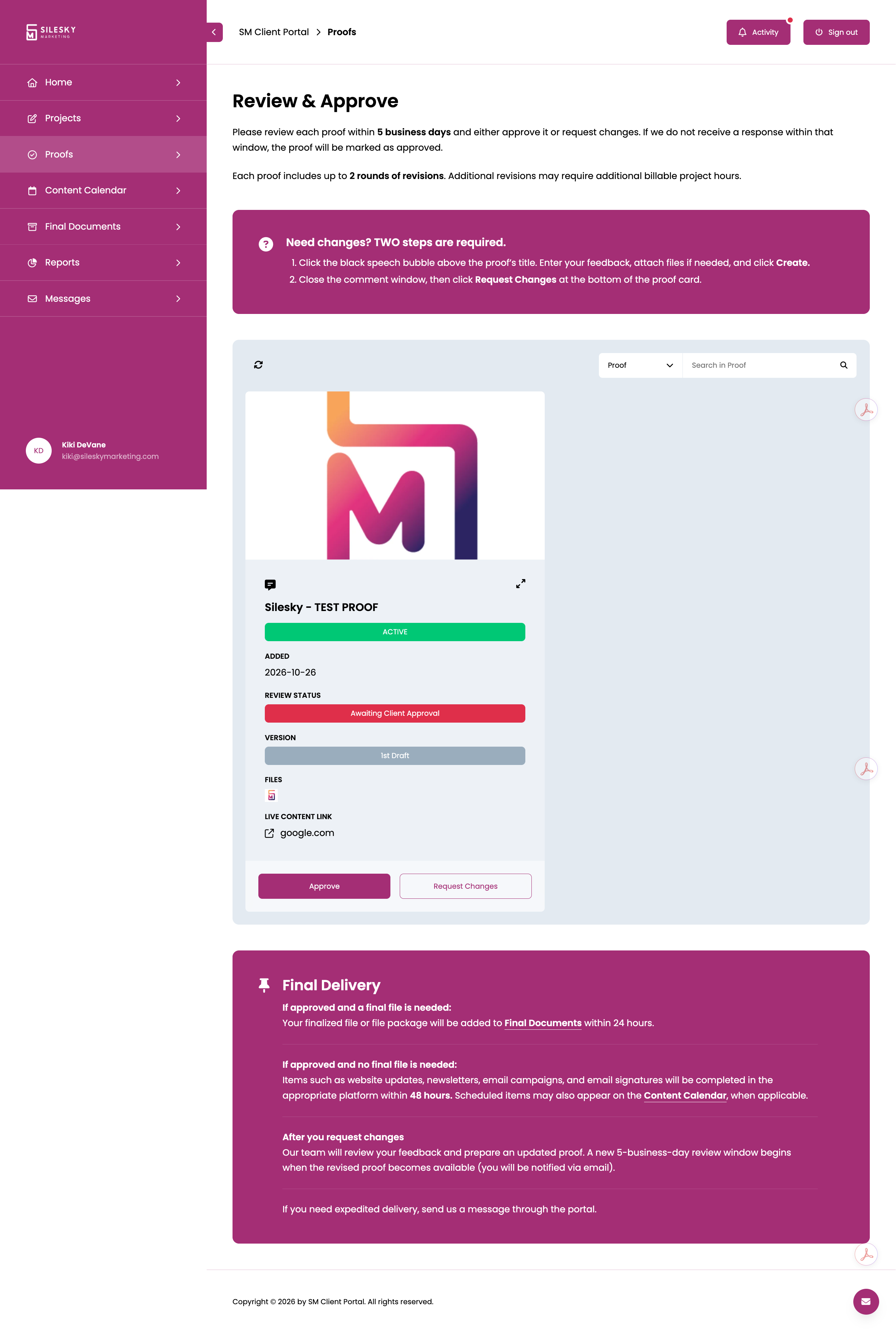
Review and approve proofs
Open the attached file or live content link, review the work, then approve it or request revisions.
- Open the proof’s black speech bubble. Enter your feedback, attach files if needed, and select Create.
- Close the comment window, then select Request Changes at the bottom of the proof card.
Posting a comment alone does not complete a revision request.
Review deadlines and final delivery
Please respond within 5 business days. Without a response, the proof will be marked approved. Each proof includes up to 2 rounds of revisions; additional revisions may require billable project hours.
After approval, needed final files are added to Final Documents within 24 hours. Work completed in another platform is completed within 48 hours, as described on the Proofs page. A revised proof starts a new 5-business-day review window.
Review a proof and choose your next step
View larger image ↗- Open the black speech bubble to enter feedback.
- Select a file icon or the live content link to inspect the work.
- Choose Approve when the proof is ready.
- For revisions, post your feedback first, then choose Request Changes.
Show screenshot
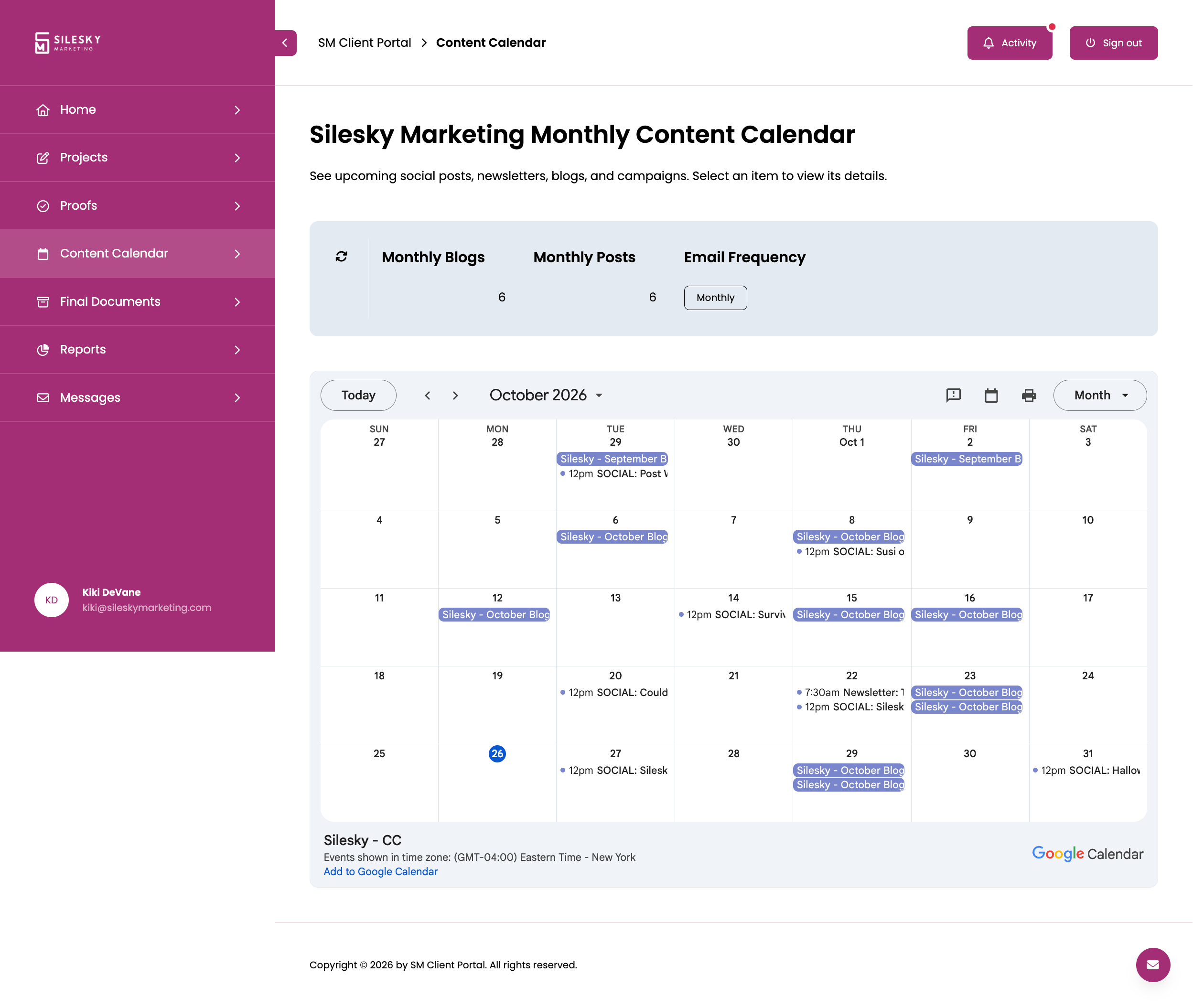
Explore your content calendar
See scheduled social posts, newsletters, blogs, and campaigns in one place.
You must be signed into a Google account in your browser to view the embedded calendar.
See upcoming marketing activity
View larger image ↗- Use the arrows or date selector to browse the calendar.
- Select a calendar item to view its details.
Show screenshot
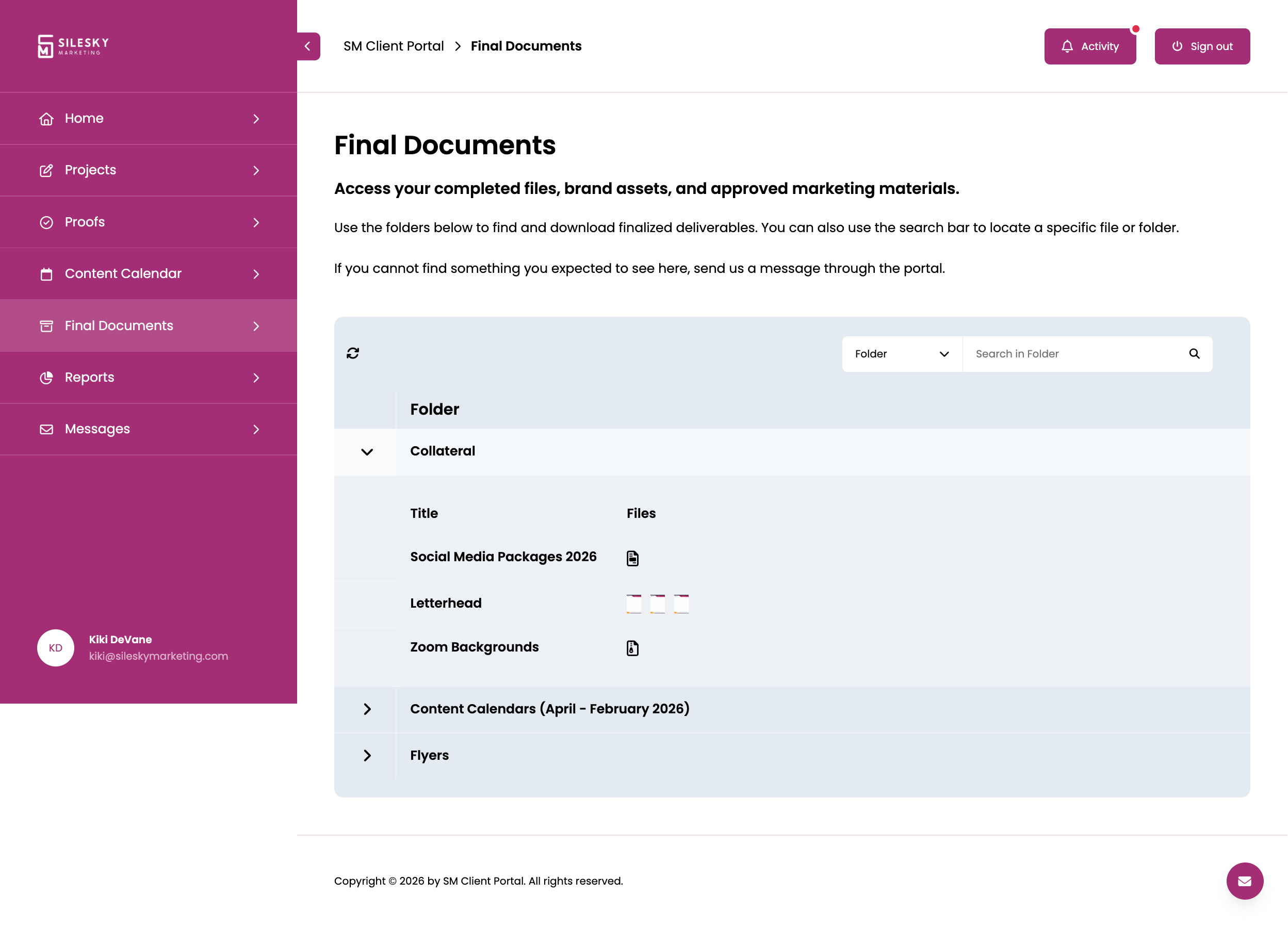
Download final documents
Find completed deliverables, approved marketing materials, and brand assets in the folders provided.
Find your completed files
View larger image ↗- Use the arrow beside a folder to expand it.
- Select a file icon or thumbnail to open or download a deliverable.
- Search by folder name to narrow the list.
Show screenshot
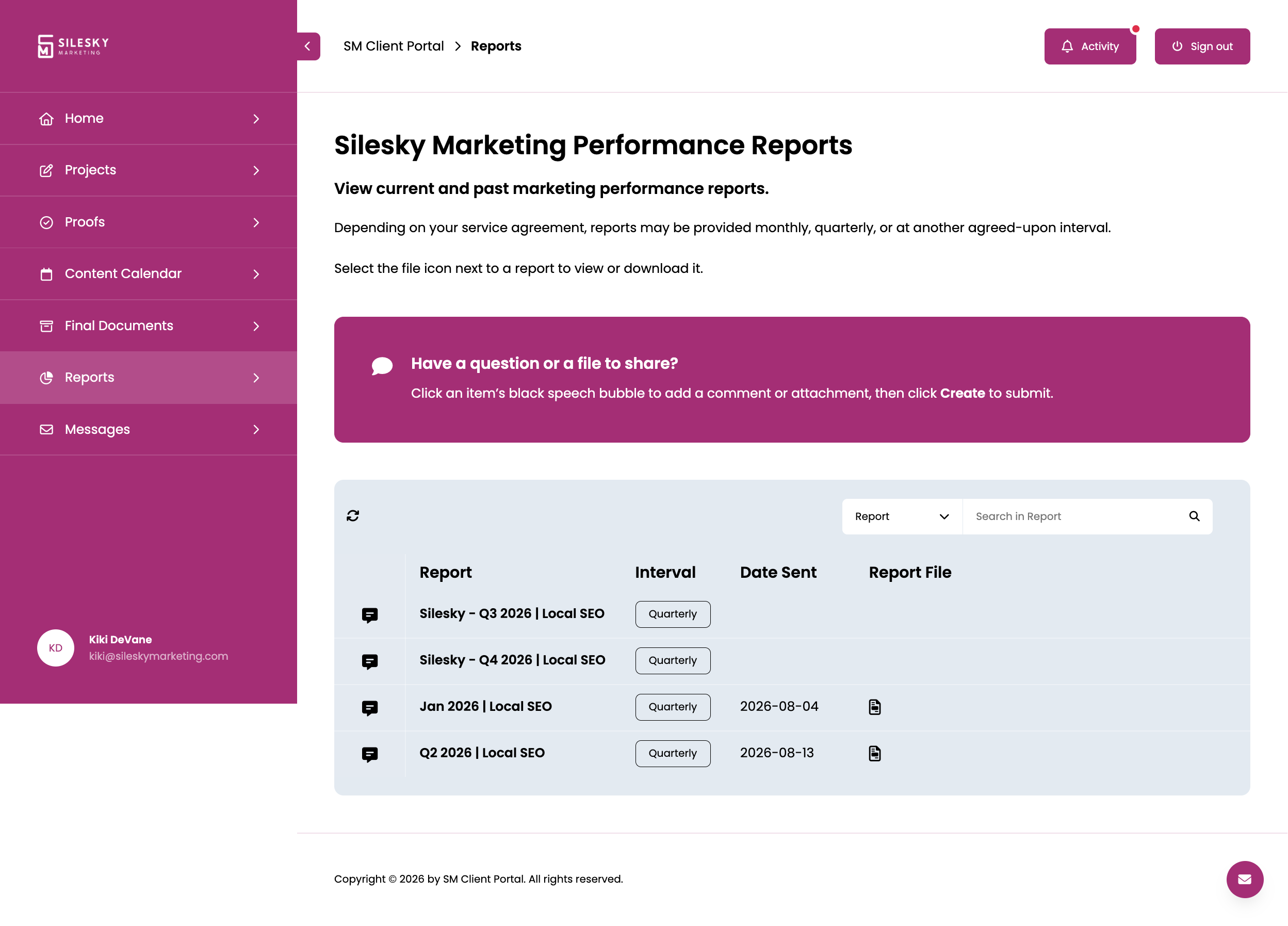
Read your performance reports
Access available reports and ask questions directly on the relevant report. Reporting frequency follows your service agreement.
Access performance reports
View larger image ↗- Select an available report file icon to view or download it.
- Open the speech bubble to ask a question about a report.
Show screenshot
Keep the conversation moving
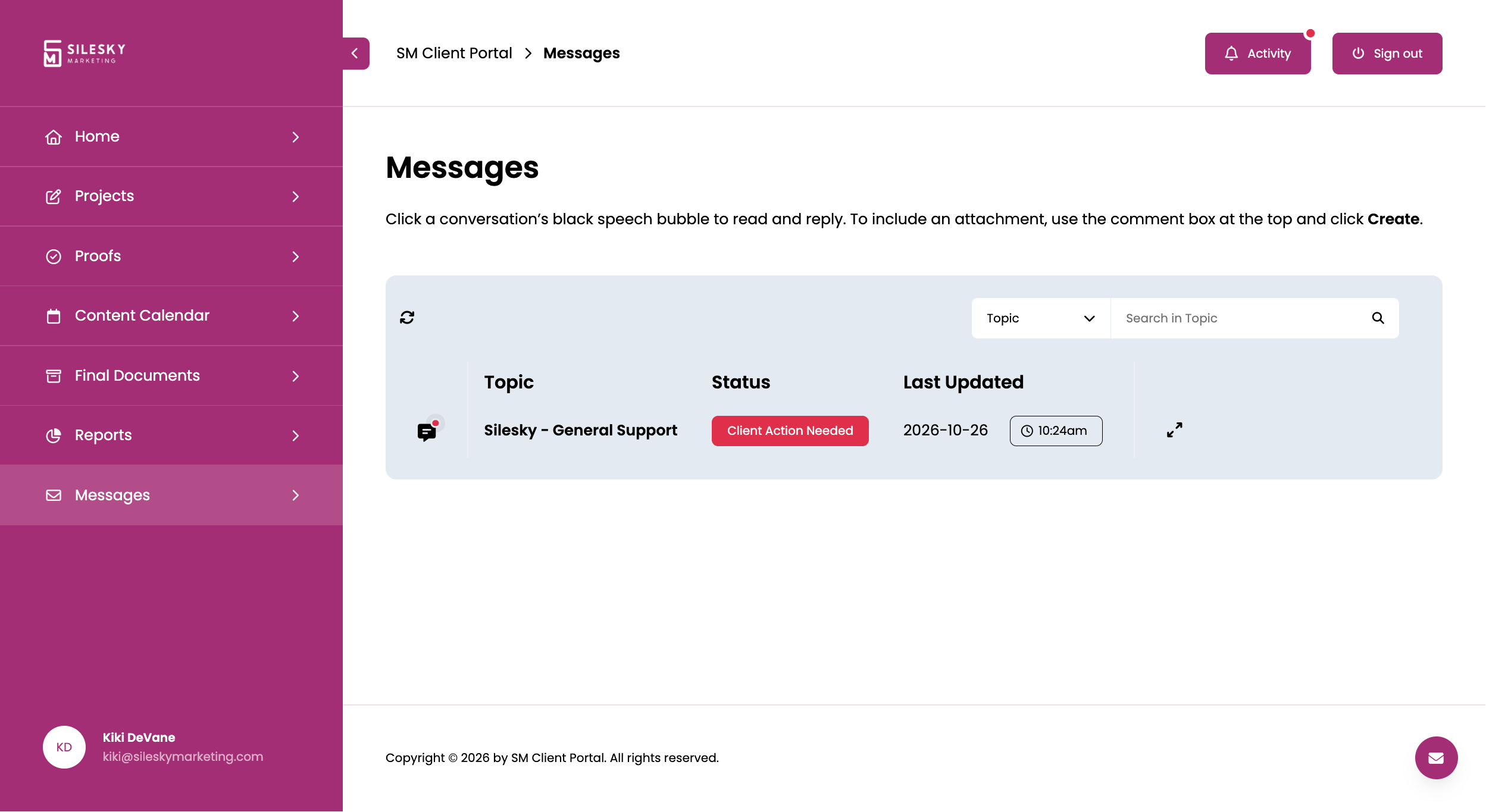
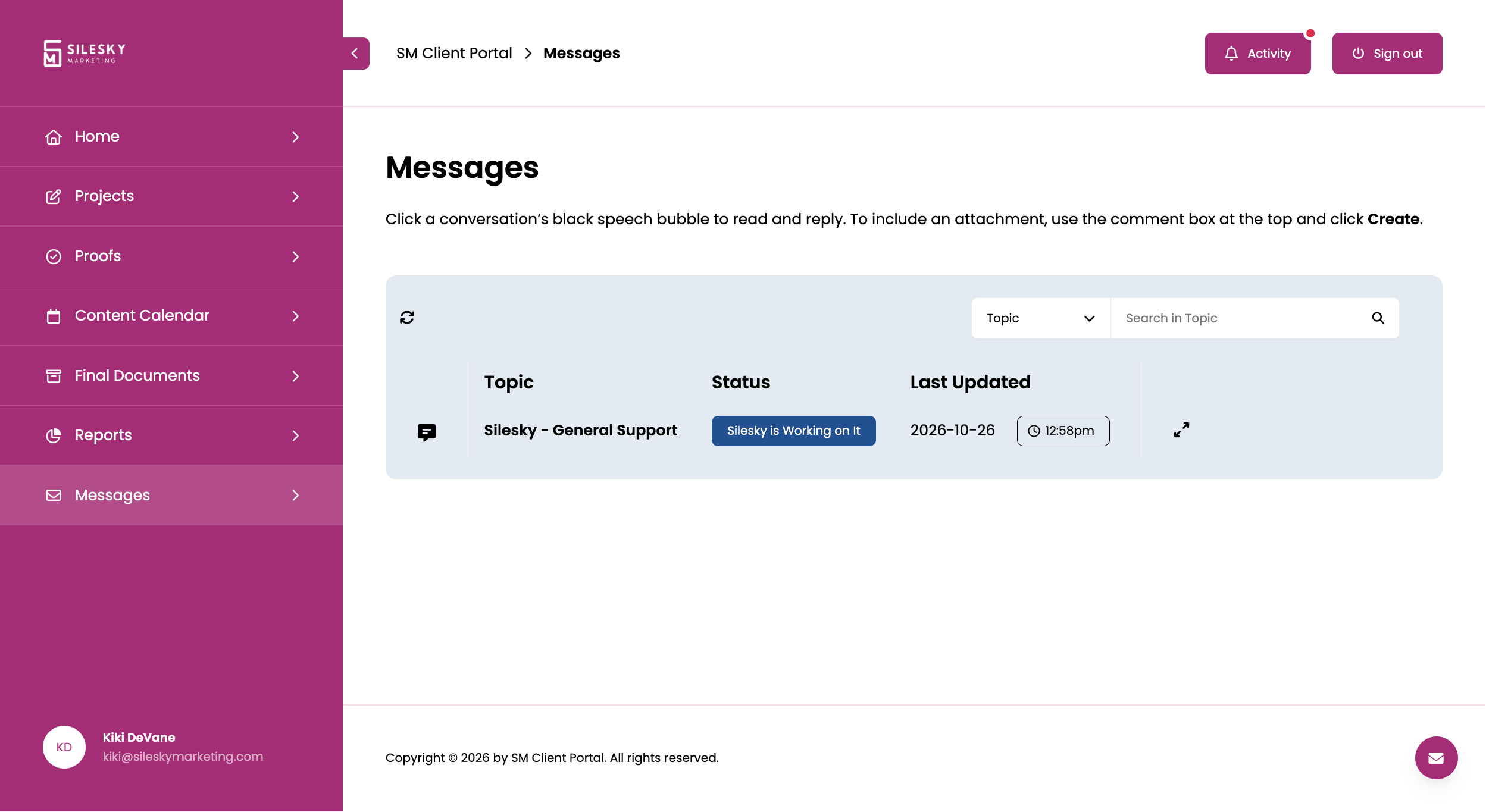
Use the conversation status to see whose action is next, then open the black speech bubble to read and respond.
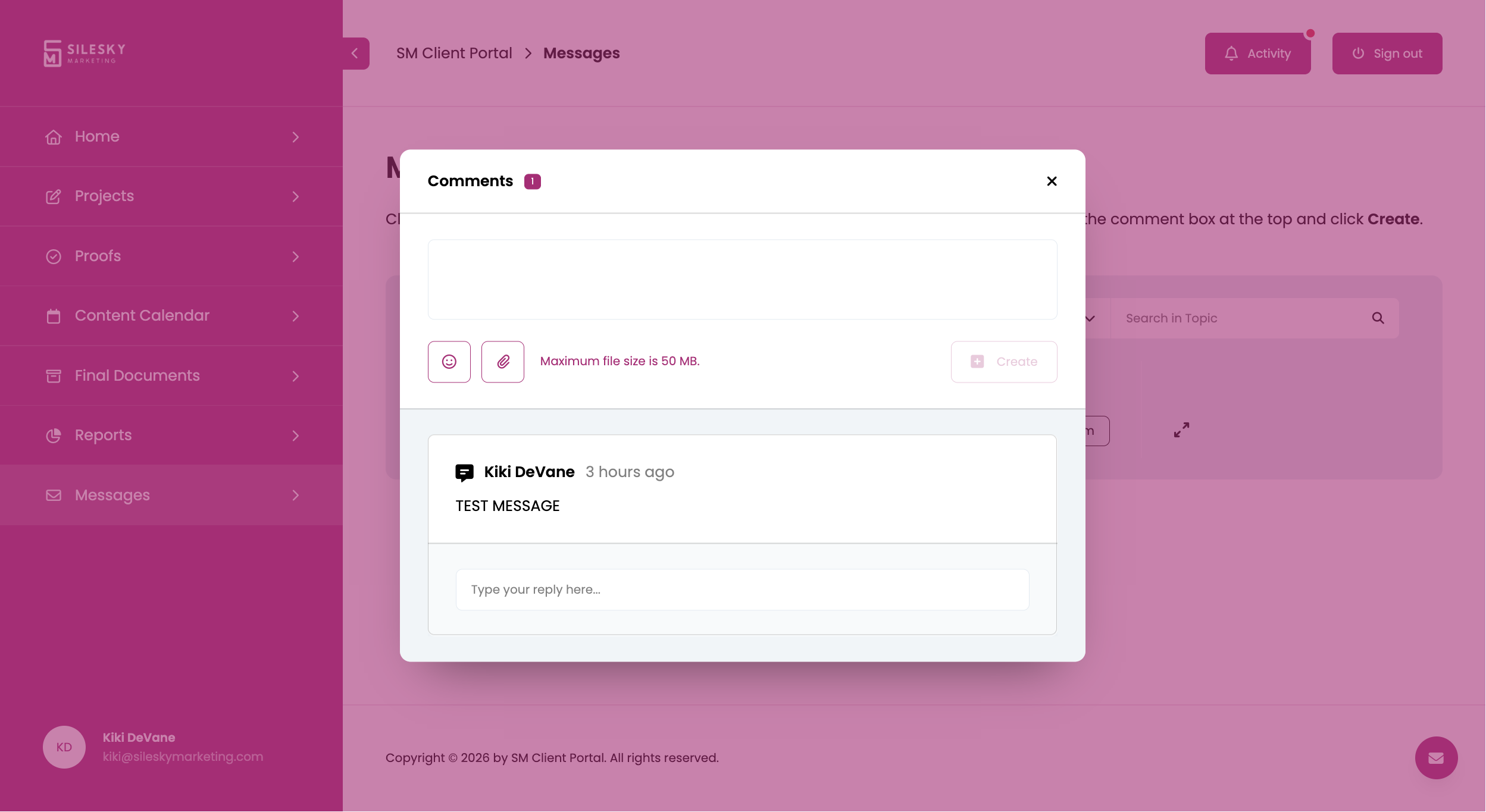
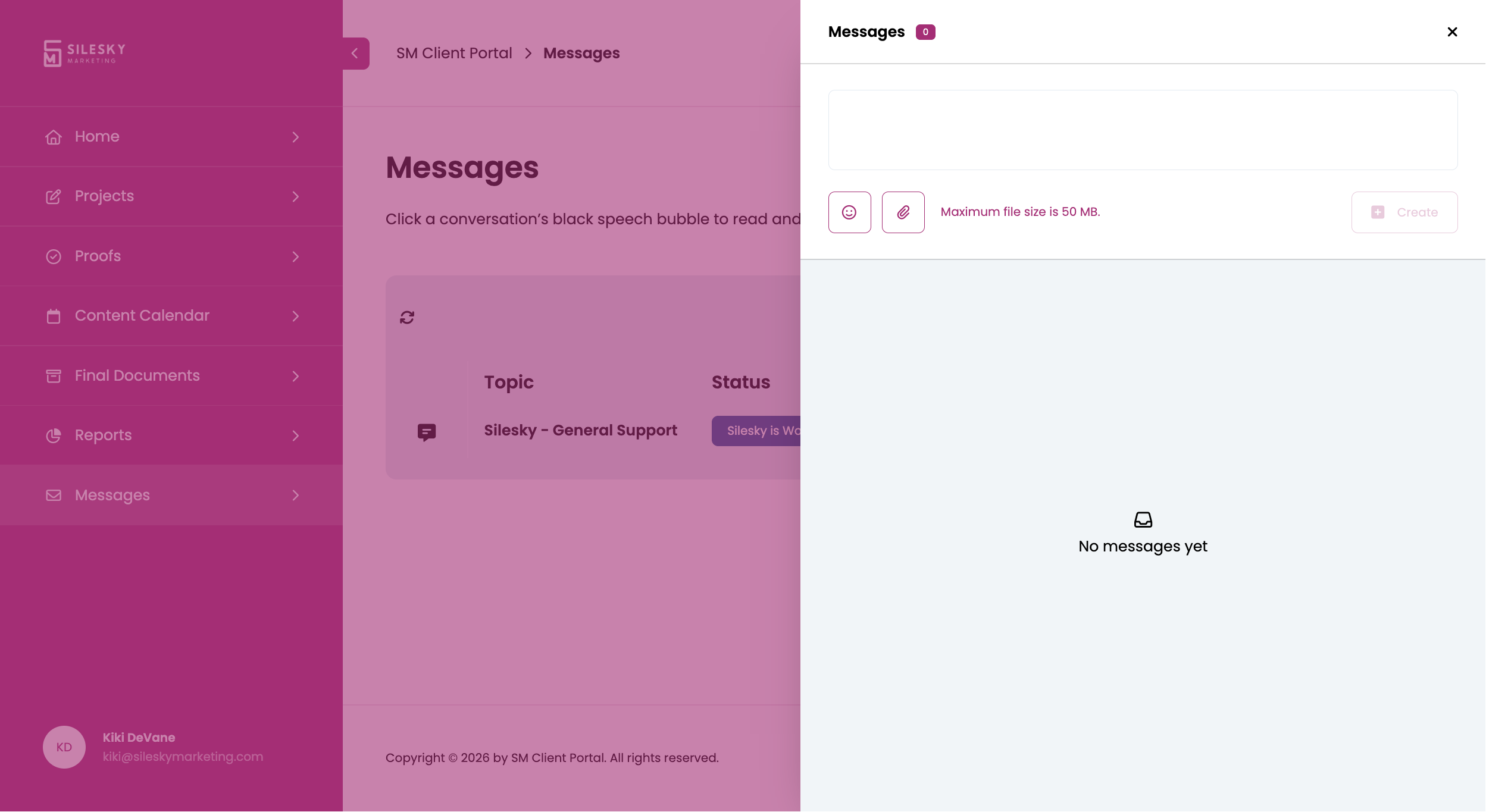
The top comment box and Create button post a new comment. To include a file, use this top box and its paperclip. The field beneath an existing comment lets you reply to that comment. Attachments have a maximum file size of 50 MB.
Know when your response is needed
View larger image ↗- Open the black speech bubble to read and reply.
- Client Action Needed means the conversation needs your attention.
Show screenshot
See when our team is working on it
View larger image ↗- Silesky is Working on It means the next response or action is with our team.
Show screenshot
Reply and share attachments
View larger image ↗- Use the top comment box for a new comment or an attachment.
- Use the paperclip to attach a file. Maximum file size: 50 MB.
- Choose Create to post the comment entered above.
- Use the reply field beneath a comment to respond to that message.
Show screenshot
Start a message from any portal page
View larger image ↗- Type your message in the top box.
- Use the paperclip if you need to include a file.
- Choose Create to send your message.
Show screenshot
Understand your notifications
Use the Activity bell for comments and replies. Check the Home banners for proofs ready for review and conversations that need your response.
New proofs do not appear in the Activity list. The Action Needed banner on Home is your prompt to review them.
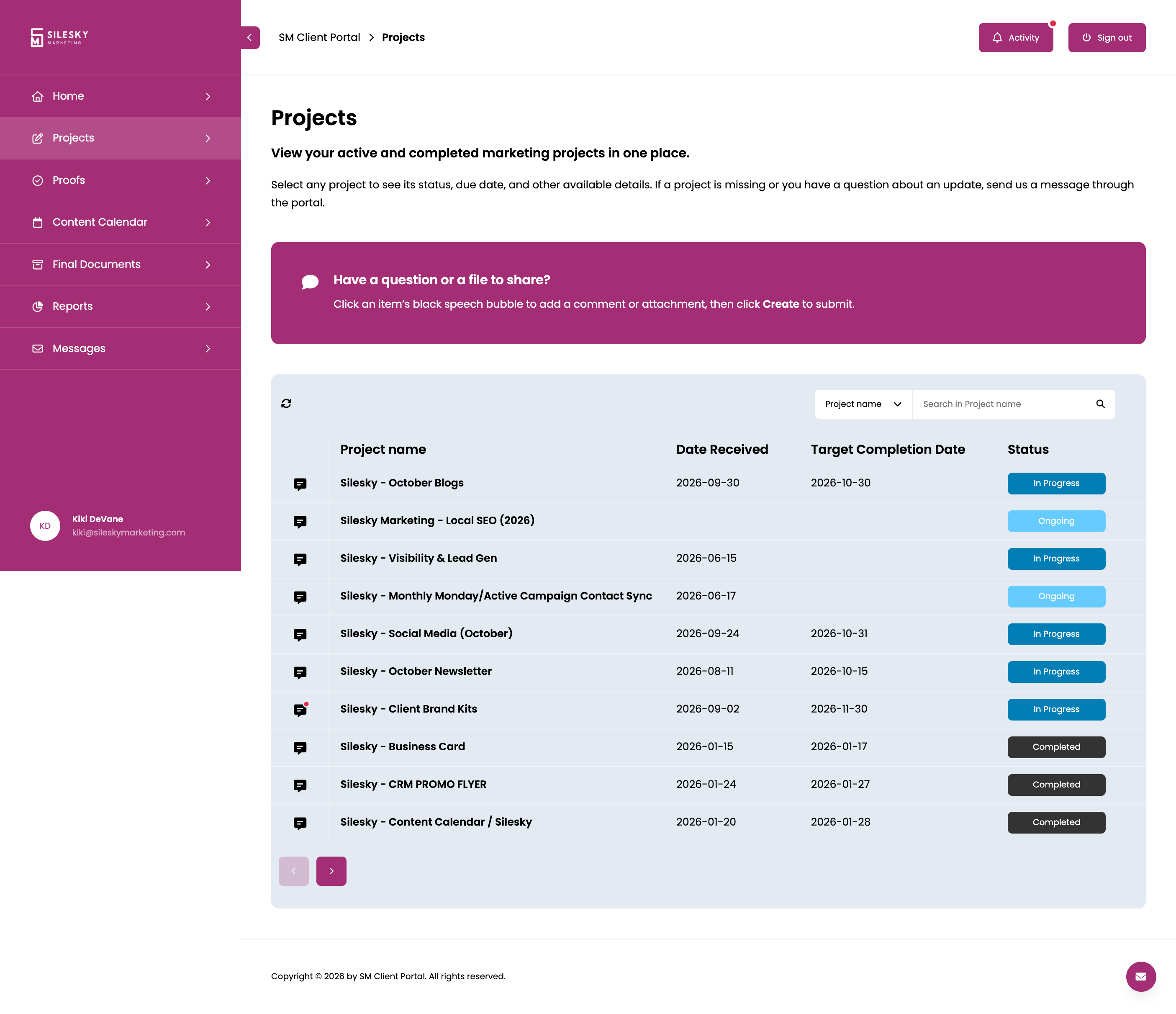
Check recent message activity
View larger image ↗- Activity lists new comments and replies, with the sender and time.
- Open the Activity bell in the portal header to see message updates.
Show screenshot